
How to Block Someone on OnlyFans: The Complete Guide to Creator Security & Ban Tools

Leo Vance
Published: Aug 24, 2026 • 8 min read
Managing an independent subscription business provides unparalleled creative and financial autonomy, but it also brings creators into direct contact with volatile internet personalities.
From boundary-crossing direct messages and unhinged demands to persistent harassment, stalking, and intellectual property threats, learning how to block users on OnlyFans is not merely a technical skill—it is an essential operational protocol for safeguarding your mental health, physical safety, and revenue stability.
OnlyFans equips creators with a robust suite of audience moderation tools. However, many beginners misunderstand the profound technical and financial distinctions between Blocking, Restricting, and Geoblocking.
Using the wrong feature can inadvertently forfeit subscription revenue, alert hostile individuals, or trigger retaliatory credit card chargebacks.
Below is the definitive, step-by-step security breakdown on how to wield platform moderation tools with surgical precision.
How to Block a User on OnlyFans (Step-by-Step)
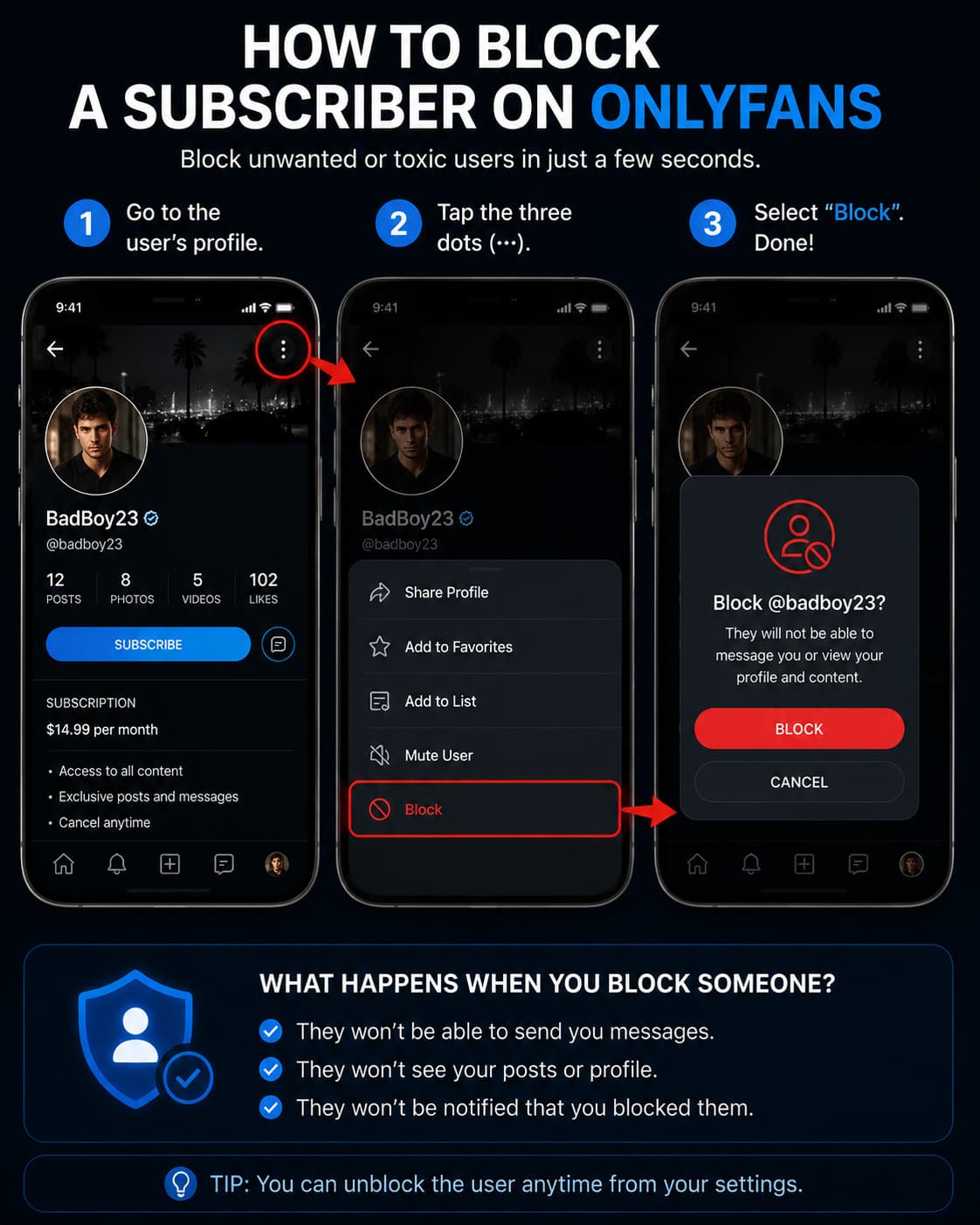
If an individual violates your personal comfort boundaries, posts abusive comments, or attempts digital harassment, you can permanently ban them in seconds:
- Locate the User Profile: Navigate to your direct messages, notification center, or active subscriber roster and click on the user's avatar to open their profile interface.
- Access the Action Menu: In the top-right corner of their profile card, click on the three horizontal dots (the "More Options" menu icon).
- Select "Block": A confirmation modal will appear on your screen, presenting the option to confirm the block action.
- Confirm the Termination: Once confirmed, the platform immediately severs the user's connection to your account.
What Happens Immediately When You Block a User?
- Access Revocation: The blocked user is instantly stripped of access to your timeline, photos, full-length videos, and archived posts.
- Direct Messaging Terminated: The user can no longer send direct messages, reply to mass announcements, or purchase pay-per-view (PPV) unlocks.
- Automatic Unfollow & Rebill Termination: The user is removed from your active subscriber roster, and their automatic monthly billing renewal is permanently deactivated.
- Search Invisibility: If the blocked user attempts to search for your username on OnlyFans while logged into their account, your profile will appear as a generic "Page Not Found (404)" error.
Restrict vs. Block: The Critical Strategic Difference
The most common operational mistake new creators make is defaulting to a permanent block when a subtle restriction would have protected their financial interests.
When you open the moderation menu, OnlyFans provides two distinct actions: "Restrict" and "Block". Understanding the strategic differences between these tools is vital for revenue optimization.
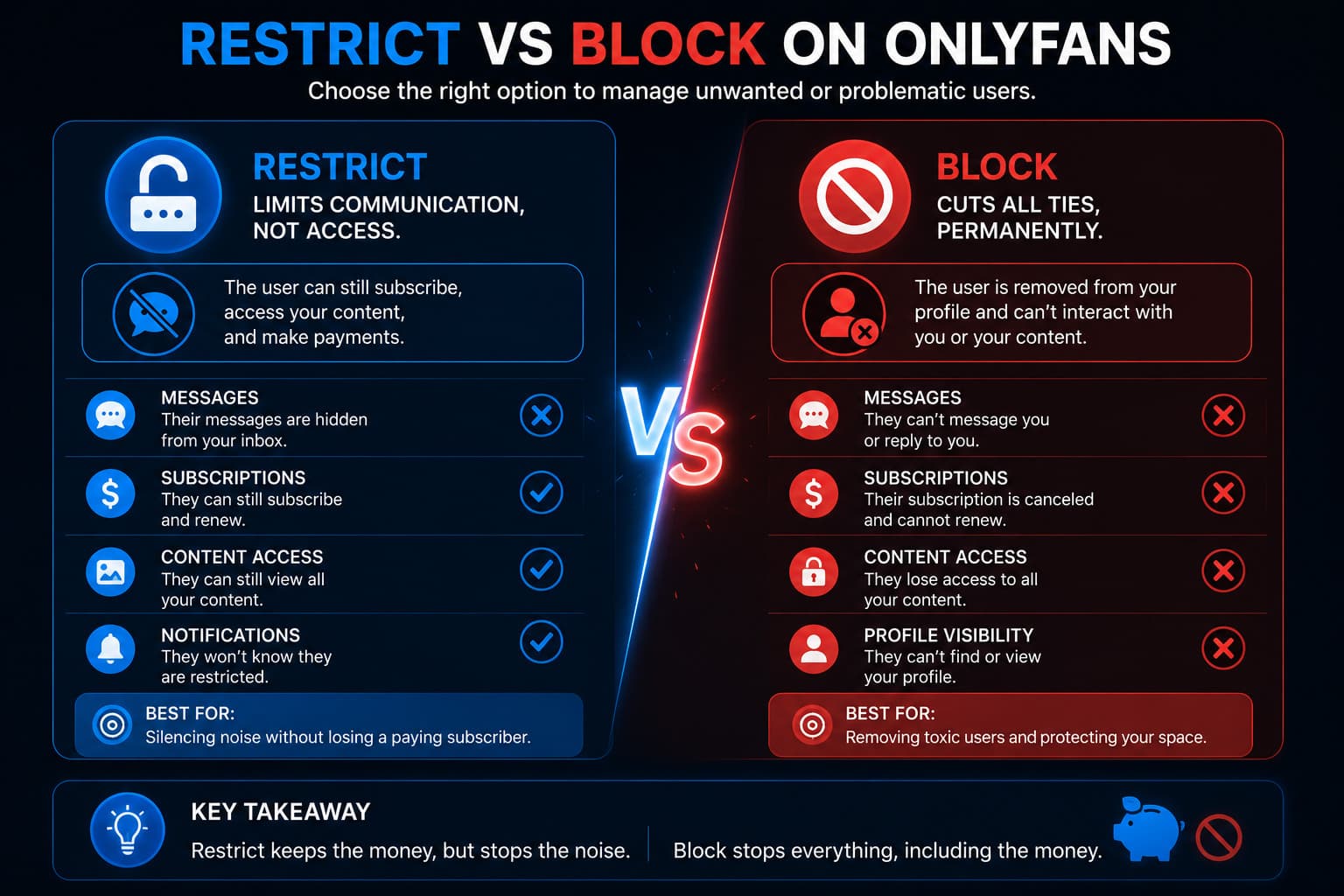
| Moderation Feature | Timeline / Content Access | Direct Messaging Ability | Commenting on Posts | Monthly Billing Status | Best Use Scenario |
|---|---|---|---|---|---|
| Restrict | Fully Visible (Paid access remains) | Disabled (User messages hidden) | Hidden (Only visible to them) | Active (You keep their money) | Annoying, overly needy, or spammy subscribers who pay reliably |
| Block | Completely Revoked (404 Error) | Completely Terminated | Completely Deleted | Canceled (Rebill severed) | Harassment, stalking, threats, or suspected copyright pirates |
| Mute | Fully Visible | Active (Messages bypass inbox) | Active | Active | Low-priority subscribers whose chat notifications you wish to silence |
When to Restrict Instead of Block
If a subscriber is socially awkward, sends an overwhelming volume of direct messages every day, or demands constant attention without tipping, restricting them is the superior business choice.
When restricted:
- The subscriber can still see your posts and consume your media.
- Their recurring monthly subscription fee continues to process directly into your creator account.
- Their direct messages and comments are silently filtered into a restricted archive, meaning you never see their notifications, but they remain unaware that they have been muted.
You preserve your peace of mind while continuing to capture their monthly subscription capital.
Financial Consequences: Do Blocked Users Get a Refund?
One of the most anxiety-inducing questions creators ask is: does blocking a subscriber issue an automatic refund from my balance?
Under standard OnlyFans platform terms of service:
- No Automatic Pro-Rated Refunds: Blocking a user does not automatically trigger an immediate refund of their existing monthly subscription fee. The user paid for 30 days of digital access, and that transaction remains finalized in your creator pending balance.
- Future Billable Cycles Canceled: Blocking guarantees that the user will never be billed again on subsequent renewal dates.
- The Chargeback Risk: While OnlyFans does not automatically issue a refund, a disgruntled user who is abruptly blocked may contact their credit card company to file a fraudulent chargeback claim.
Mitigation Strategy: If you must block a user who has recently tipped large sums or commissioned expensive custom media, document screenshots of your direct message conversations proving the media was delivered as agreed before executing the ban. These records can be submitted to OnlyFans support to successfully dispute retaliatory chargebacks.
Regional Geoblocking: The Macro Ban Shield
Individual blocking addresses specific problem users, but what if you need to prevent entire geographic regions from discovering your account?
OnlyFans provides a built-in Geoblocking system accessible via Settings > Privacy and Safety > Security:
- Block Specific Countries: Prevent entire foreign jurisdictions from viewing your profile link.
- Block Specific US States / Provinces: Block your home state or neighboring regions to ensure acquaintances, family members, or local employers cannot access your feed.
- Block Specific IP Addresses: If you know the static IP address of a specific stalker or competitor, you can blacklist that IP range permanently.
Learn more about pairing geoblocking with total anonymity in our comprehensive guide to running a faceless OnlyFans account.
How to Report Severe Violations to Platform Compliance
If a user's behavior crosses from general rudeness into criminal territory—such as explicit death threats, stalking, blackmail, or threats to leak copyrighted paywalled media—blocking them is only the first step:
- Preserve Digital Evidence: Take unedited, full-screen captures of the user's profile ID, transaction receipts, and direct message dialogue displaying timestamps.
- Submit a Formal Compliance Report: Navigate to the user's profile, click the three dots, select "Report", and categorize the violation accurately (e.g., Harassment, Non-Consensual Distribution, Threat of Violence).
- Escalate via Email: For urgent safety emergencies, email
support@onlyfans.comwith the subject line "URGENT: Safety Violation / Threat Against Creator", providing the user's permanent numeric account ID. Platform safety teams have the authority to ban the offender's credit card hardware footprint and IP range permanently.
To ensure your overall digital infrastructure remains impenetrable, review our vetted checklists on is OnlyFans private and essential OnlyFans security tips.
Frequently Asked Questions
What does a user see when you block them on OnlyFans?
When a blocked user visits your profile URL, they are presented with a standard 'Page Not Found (404)' error message. The platform does not display an explicit notification stating 'You have been blocked by this creator.'
Does blocking someone on OnlyFans refund their money?
No. Blocking a user does not issue an automatic refund for past subscription payments, tips, or unlocked PPV messages. However, it immediately deactivates their automatic subscription renewal so they cannot be charged in future billing cycles.
Can a blocked user make a new account to see my page?
If a blocked user creates a new account using a different email address, they could technically find your page unless you block their IP address or geoblock their regional state. OnlyFans' fraud detection systems frequently ban secondary accounts created on the same device.
What is the difference between blocking and restricting on OnlyFans?
Restricting mutes a user's direct messages and comments while allowing them to remain subscribed and continue paying monthly fees. Blocking completely revokes all access, terminates the subscription, and prevents the user from viewing your profile.
Can I unblock someone on OnlyFans later?
Yes. Creators can manage their blocked roster at any time by navigating to Settings > Privacy and Safety > Blocked Users, where any previously restricted or blocked account can be restored.