
How to Cancel an OnlyFans Subscription: The Complete Guide to Stopping Auto-Renew & Billing

Leo Vance
Published: Sep 1, 2026 • 9 min read
In the fast-moving digital creator economy, managing recurring subscription expenses can quickly become an overwhelming financial task. Many consumers subscribe to multiple creators during initial promotional sales or out of curiosity, only to discover weeks later that automatic recurring billing has quietly continued charging their credit cards.
Searching for how to cancel an OnlyFans subscription is one of the most common administrative queries among platform users. Whether you are seeking to reduce monthly entertainment expenses, taking a temporary digital sabbatical, or simply dissatisfied with a creator’s posting frequency, the cancellation process is straightforward once you understand how the platform’s interface operates.
However, canceling a subscription involves critical nuances: understanding grace periods, knowing whether your previously purchased pay-per-view (PPV) assets will be lost, and avoiding the catastrophic mistake of filing a bank chargeback that can permanently blacklist your credit card from the global payment processing network.
In this comprehensive operational guide, we provide step-by-step cancellation instructions across mobile and desktop devices, dissect OnlyFans' strict refund policies, explain how to remove saved payment credentials, and address the common pitfalls users encounter when managing their subscriptions.
How the OnlyFans Recurring Billing Model Operates
When you purchase a subscription on OnlyFans, you are not making a one-time transaction; you are authorizing an ongoing Recurring Monthly Billing Agreement.
By default, the platform’s checkout architecture activates the Auto-Renew feature. Exactly 30 days following your initial payment (down to the exact hour and minute), OnlyFans’ automated billing system charges your saved payment card to extend access for an additional 30-day cycle.
| Timeline Point | Account Event | Billing & Access Status |
|---|---|---|
| Day 0: Activation | User subscribes to creator page ($15.00 billed) | Auto-renew enabled by default; immediate 30-day vault access |
| Day 15: Cancellation | User toggles off the auto-renew switch | Subscription remains 100% active for the remaining 15 prepaid days |
| Day 30: Expiration | 30-day billing cycle concludes | Access gracefully expires with $0 future charges and account kept open |
To stop billing, you do not need to delete your account or contact customer support; you simply need to toggle off Auto-Renew.
How to Cancel an OnlyFans Subscription on Mobile (iPhone & Android)
Because OnlyFans operates as a browser-based Progressive Web Application (PWA) rather than a native app downloaded from the Apple App Store or Google Play Store, you cannot manage your subscriptions through your iOS "Apple ID Subscriptions" menu or Android "Google Play Subscriptions" dashboard.
You must execute the cancellation directly within your mobile browser (Safari, Chrome, Firefox, or Brave):
- Log In to Your Account: Open your preferred mobile browser, navigate to
OnlyFans.com, and authenticate your account. - Access Your Profile Directory: Tap your Profile avatar icon located in the bottom-right corner of the mobile navigation bar.
- Navigate to Following: In the slide-out navigation menu, tap on the Following tab. This directory displays every active subscription currently tied to your billing profile.
- Locate the Specific Creator: Scroll through your list and tap the name of the creator whose subscription you wish to terminate.
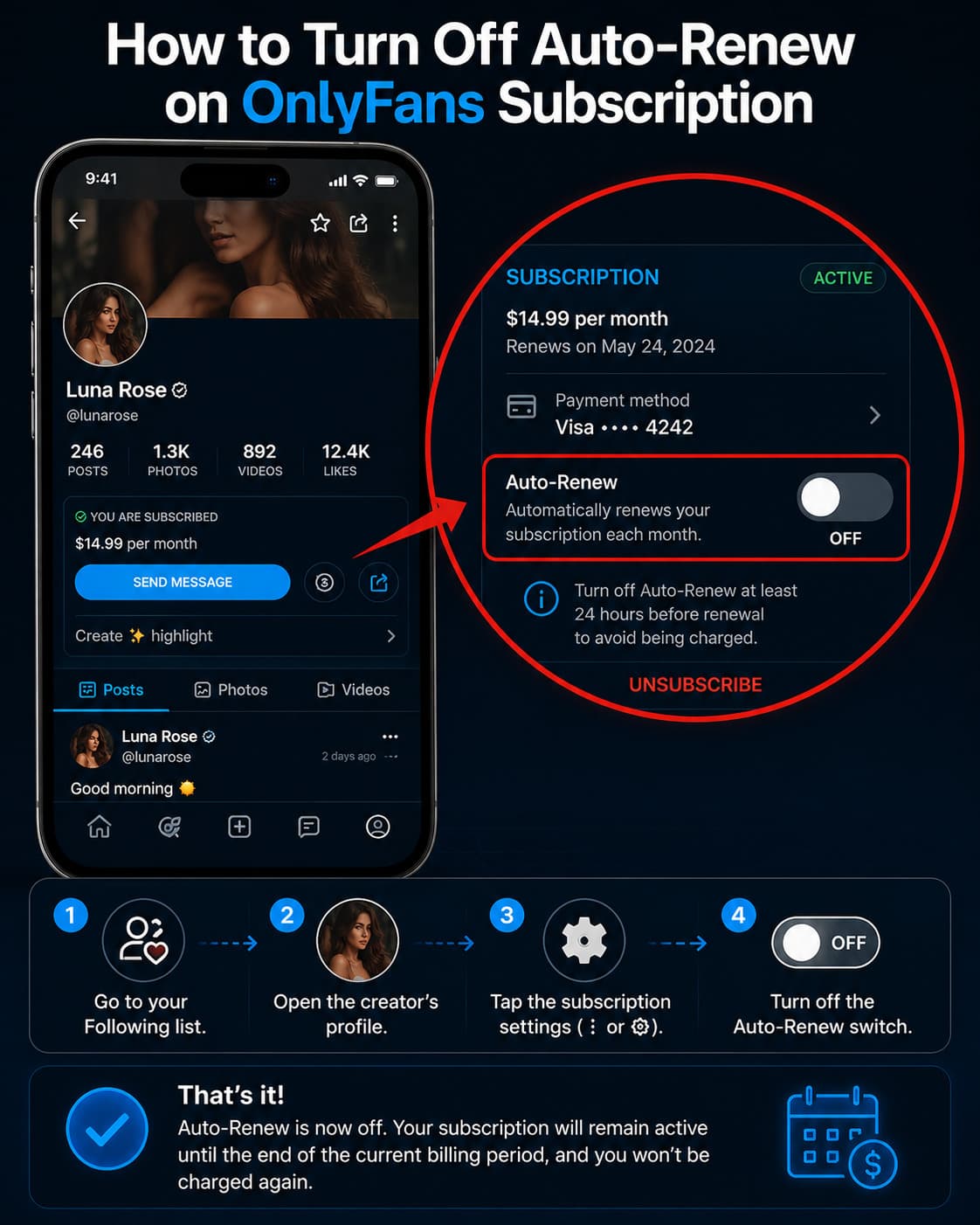
- Disable Auto-Renew: On the creator’s profile banner, locate the active subscription status box. Tap the toggle switch labeled Auto-Renew to turn it from active (blue) to disabled (grey).
- Complete the Exit Survey (Optional): A modal prompt will appear asking: "Why are you turning off auto-renew?" You can select a feedback option (e.g., "Subscription price too high", "Not posting enough content") or simply tap Confirm or Skip.
Once confirmed, the status will immediately update to display an expiration date, confirming that automatic billing has been severed.
How to Cancel on Desktop or Laptop (PC & Mac)
If you prefer managing your financial settings from a desktop browser, the interface provides an even faster bulk-management layout:
- Navigate to
OnlyFans.comand log into your account. - In the left-hand sidebar navigation menu, click on Following (represented by a user icon with a checkmark).
- Switch to the Active tab to view your current recurring memberships.
- Click directly on the creator’s profile card.
- Under the profile header banner, click the Auto-Renew toggle button.
- Confirm the cancellation prompt.
What Happens Immediately After You Cancel?
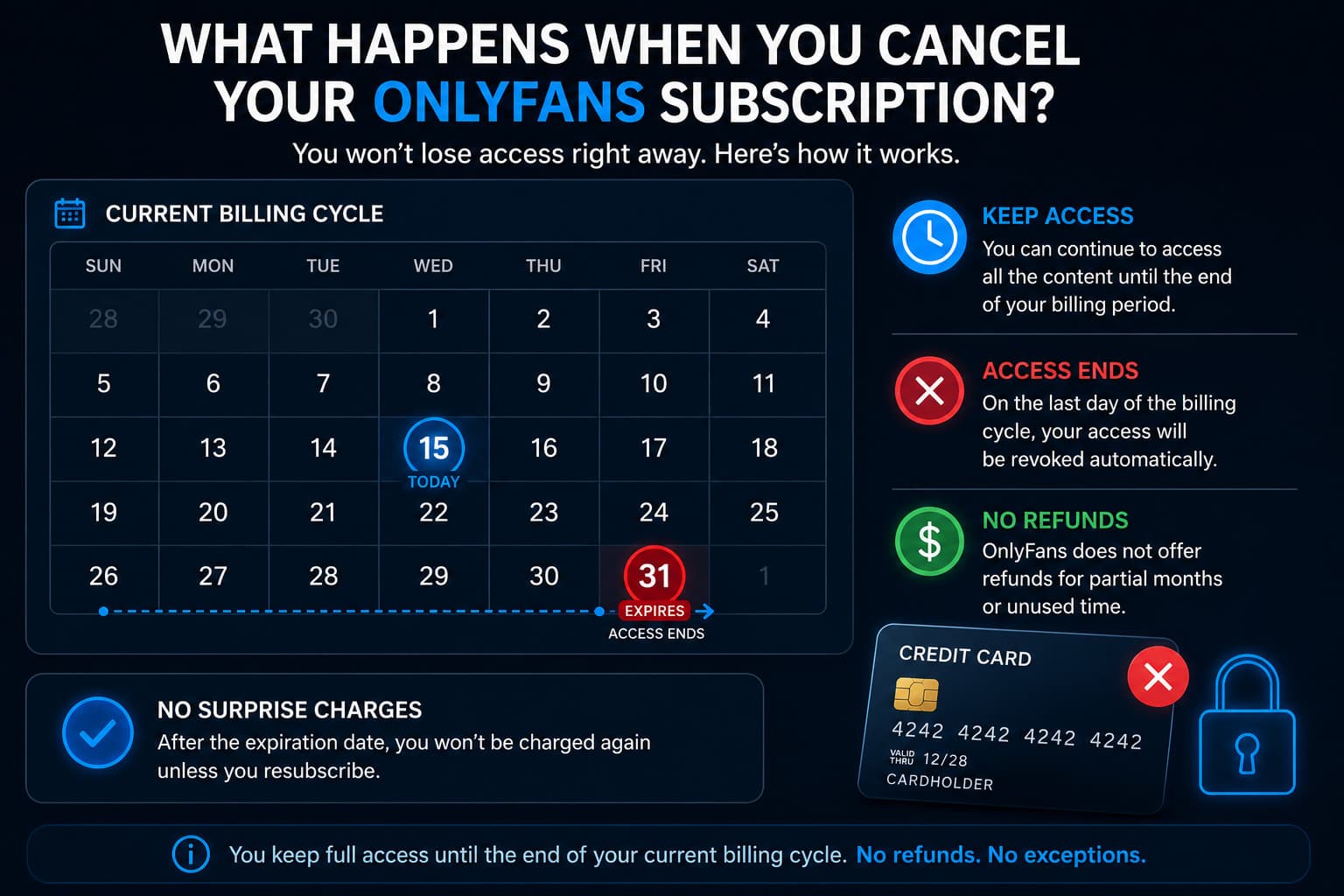
A widespread misconception among users is that canceling an OnlyFans subscription instantly revokes access to the creator’s feed. This is incorrect.
1. You Retain Full Access for the Remaining Days
When you disable auto-renew, you have already paid for a 30-day block of service. You retain complete access to the creator’s timeline, photo galleries, video archives, and direct messaging capabilities until the exact expiration timestamp of your paid cycle.
2. Do You Lose Previously Purchased PPV Content?
No. You do NOT lose your purchased Pay-Per-View (PPV) content.
Any pay-per-view media, exclusive custom videos, or photo sets that you unlocked via direct messages or locked feed posts remain permanently accessible in your account vault. Even after your monthly subscription to that specific creator expires, you can still log into your OnlyFans account, open your private message history with that creator, and view your purchased media at any time.
3. Your Chat History Remains Intact
Your historical direct message exchanges remain stored on the platform servers. If you decide to re-subscribe to the creator six months later, your previous chat history and VIP tags will be restored seamlessly.
The Refund Reality: OnlyFans' "All Sales Are Final" Policy
What happens if you forgot to turn off auto-renew, and your credit card was charged $20 this morning for a creator you no longer watch? Can you request a refund?
Under OnlyFans' official Terms of Service, the platform enforces an ironclad policy: All purchases and subscription renewals are strictly non-refundable.
Because digital subscription content is delivered and consumed instantaneously upon payment, the platform does not grant refunds for buyer’s remorse, accidental renewals, or dissatisfaction with a creator’s creative direction.
The Extremely Rare Exceptions for Refunds
OnlyFans Customer Support will only consider issuing formal refunds under three highly specific circumstances:
- Verifiable Technical Billing Glitches: Duplicate charges resulting from a server error during checkout.
- Deactivated or Banned Creator Profiles: If a creator deletes their profile or is banned by platform moderators while you have active prepaid days remaining on your subscription, OnlyFans will issue a pro-rated refund.
- Confirmed Fraudulent Account Takeovers: If an unauthorized third party hijacked your account credentials and executed fraudulent transactions, substantiated by forensic IP access logs.
The Nuclear Trap: Why You Must NEVER File a Credit Card Chargeback
When users are denied a refund by customer support, many consider contacting their credit card company or bank to initiate a Chargeback (claiming the charge was "unauthorized" or "fraudulent").
Filing a chargeback against OnlyFans is the worst financial mistake you can make.
| Incident Step | Bank & Merchant Action | Severity Level & Consequences |
|---|---|---|
| 1. Chargeback Filed | User disputes recurring charge with issuing bank | Bank initiates forced fund reversal against OnlyFans merchant account |
| 2. Account Ban | Security automation triggers immediate fraud response | Profile permanently banned; full loss of purchased PPV video archives |
| 3. Global Blacklist | Card data submitted to high-risk merchant registries | Card, name, and IP blacklisted across Ethoca and Verifi networks |
Because OnlyFans operates under strict high-risk merchant guidelines with Visa and Mastercard, their automated risk systems treat chargebacks with extreme severity:
- Immediate Account Termination: Your OnlyFans profile is instantly suspended, and all unlocked pay-per-view assets you purchased across all creators are permanently forfeited.
- Global Payment Blacklisting: Your credit card number, billing address, and associated banking profile are entered into global high-risk fraud databases (such as Ethoca and Verifi). You will be permanently barred from ever using that card or billing identity on OnlyFans or associated creator networks in the future.
If an accidental charge occurs, accept the loss for that single month, immediately disable auto-renew, and allow the subscription to expire naturally.
How to Completely Remove Your Credit Card from OnlyFans
If you want to ensure that no future charges can ever occur under any circumstances, you can permanently delete your saved payment credentials:
- Log into your OnlyFans account.
- Tap your Profile icon and select Your Cards (or navigate to
onlyfans.com/my/payments/cards). - Locate your saved credit or debit card.
- Tap the Trash Can / Delete icon adjacent to the card details.
- Confirm removal.
Note: If you have active subscriptions running, the platform will prompt you to disable auto-renew on those subscriptions before allowing you to delete your primary funding method.
Frequently Asked Questions
Do you lose access immediately when you cancel an OnlyFans subscription?
No. Disabling auto-renew simply stops the next scheduled billing cycle. You retain full, uninterrupted access to the creator’s content, posts, and direct messages until the final day of your current 30-day paid period.
Will I lose my purchased PPVs if I unsubscribe from a creator?
No. All pay-per-view (PPV) content and custom videos that you paid to unlock remain permanently stored in your account history and can be accessed within your direct message archives even after your subscription lapses.
Can you get a refund if you forgot to cancel before the rebill date?
In almost all cases, no. OnlyFans enforces a strict "all sales are final" policy. The platform does not grant refunds for forgotten renewals or buyer’s remorse once the digital access period has renewed.
How do I stop OnlyFans from charging my credit card completely?
Navigate to your Following tab and turn off the Auto-Renew toggle for all active creators. To guarantee zero future charges, navigate to Your Cards in your account settings and delete your saved credit card details from the platform.
Can a creator see that you canceled your subscription?
Creators can see when a subscriber toggles off auto-renew in their analytics dashboard. However, creators manage hundreds or thousands of subscribers, so individual cancellations rarely attract personal attention unless you are an active high-spending VIP supporter.
Related Account & Billing Guides
- How to Delete an OnlyFans Account Permanently
- OnlyFans Payment Methods: Credit Cards & Billing Security
- How to Recover a Locked or Suspended OnlyFans Account
- What Data Does OnlyFans Collect? Privacy & Telemetry Guide
- Understanding OnlyFans Scams & Phishing Defense
- Is OnlyFans Private? Bank Statements & Security